Signups
Signups answer the first question of every CWL: who is actually playing this month, and where do they want to go? Members commit or opt out account by account, and their answers flow straight into the roster builder — and into vetting, which warns you if a published lineup contradicts what people signed up for.
Linked accounts required
Signups now run entirely off each member's linked accounts. There is no manual name entry — a member has to be in the registry (linked to their Discord) before they can sign up. If someone can't sign up, link them first; the flow tells them to ask leadership.
The signup dashboard
/signups dashboard (leadership) is the single command for running signups — the old /signups post, /signups view, /signups open, and /signups reset commands are retired and folded into it. It works like the other dashboards: everything happens in place.
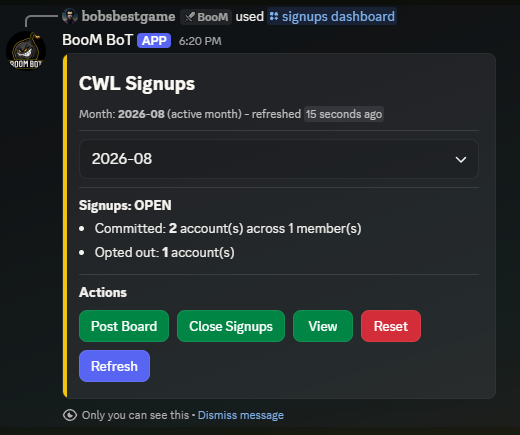
- Post Board — pick a channel and drop the public signup board there.
- Open / Close — toggle whether members can currently sign up.
- View — the committed accounts (each with its requested clan) and the opt-outs, paginated in place; export the same data as a
.txtor.csvfile when you want it in a spreadsheet. - Reset (admin) — wipe a month's signups entirely, with a confirmation step and an automatic CSV backup first, so a mistaken reset is recoverable.
The public board — how members sign up
The board members see is a short message with five buttons: Sign Up, Opt Out, Remove, Edit Submission, and Close Signups. Your server's branding logo rides on this board (and only here).
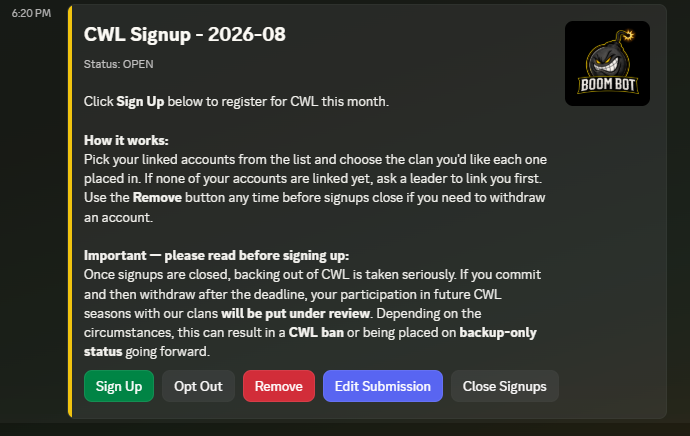
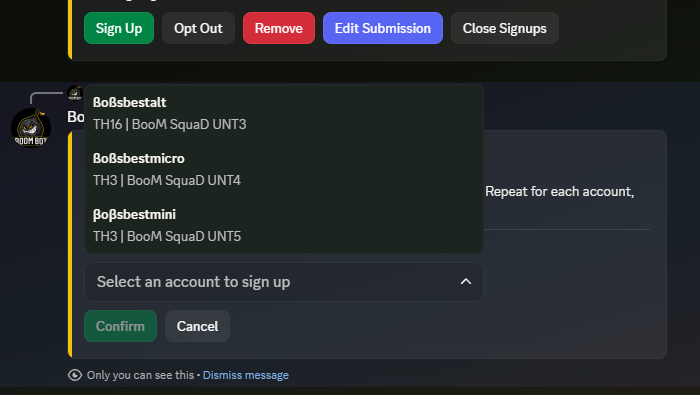
Every button opens a staged, one-account-at-a-time picker built from the member's own linked accounts — nothing is saved until they hit a final Confirm, so they can back out cleanly:
- Sign Up — pick an account, then pick the clan they want to play for. Repeat for as many accounts as they like; the list shrinks as each is handled.
- Opt Out — mark an account as sitting this month out, with an Opt Out All Accounts shortcut for members who need a full month off.
- Remove — take a previously committed or opted account back off the board.
- Edit Submission — move an already-committed account to a different requested clan without removing and re-adding it.
Opting out is per account and genuinely useful: when you build, the bot can tell "this account said no" apart from "this account never answered."
The live status board
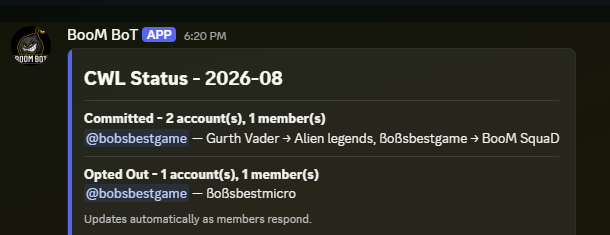
Alongside the buttons, the bot keeps a CWL Status message that updates in place on every action. It lists committed accounts next to their requested clan, plus the opt-outs, grouped by member — a running headcount you can watch fill up. (This board and the admin dashboard are deliberately logo-free; only the button board carries your branding.)
How signups feed vetting
Once you close signups for the month, two checks switch on in the roster builder (see Vetting warnings):
- Rostering an account that opted out raises a confirm — the strongest advisory tier, holding the add until you approve it.
- Placing a committed account in a different clan than it requested raises a caution.
Both match by account, not by name, so alts are handled correctly. They stay quiet until signups are closed, on the principle that an open signup period isn't finished data yet.
Months
Signups follow the same month convention as everything else: YYYY-MM, with a .5 suffix (2026-07.5) available for a rare second CWL in one calendar month. See the FAQ for details.